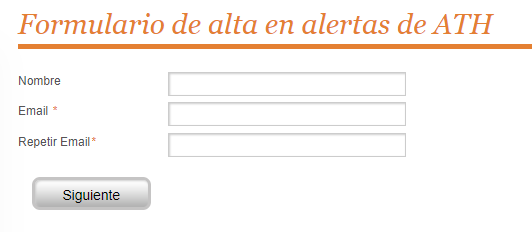
The first step is to fill in the alert subscription form that appears in the menu option Subscription within Alerts.
1. Alert subscription form step 1
The form has 3 fields: name, email and repeat email. In order to continue with the registration process, it is necessary:
-
Fill in the required fields that are email and repeat email.
-
The email field must have a valid email format.
-
The email and repeat email fields must be the same.
When you press the next button, if the data passes the validations, a second form will appear.
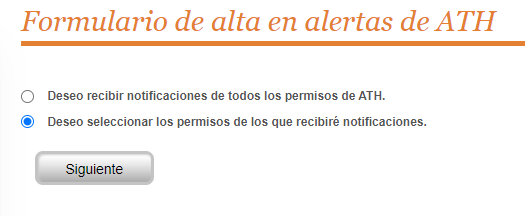
2. Alert subscription form step 2
In this form you have to choose between 2 options:
-
Receive alerts about all ATH licenses.
-
Manually select the licenses about which you want to receive alerts (option selected by default).
If the option "I want to receive notifications of all ATH licenses." is selected, the registration process skips step 3 and goes directly to step 4.
If the option "I want to select the licenses from which I will receive notifications." is selected, the registration process requires an additional step, step 3, to be able to select the licenses.
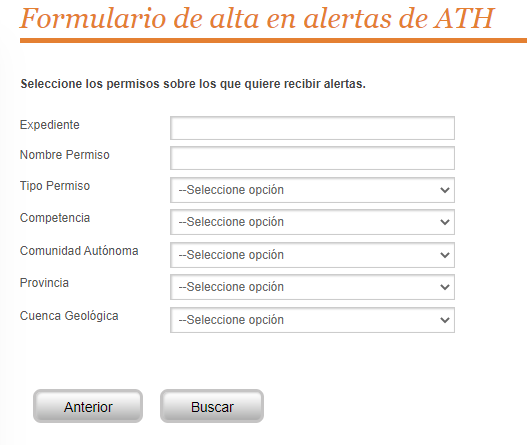
3.Alert subscription form step 3
If in step 2 the option "I want to select the licenses from which I will receive notifications" is selected, a form will appear to filter the licenses. Different filters appear in the form that allow a selective search by the criteria of expedient, license name, license type, competence, autonomous community and province in which they are located and geological basin. Once the desired filters have been selected, click on the "Search" button to make the query. Pressing the Previous button will return to step 2.
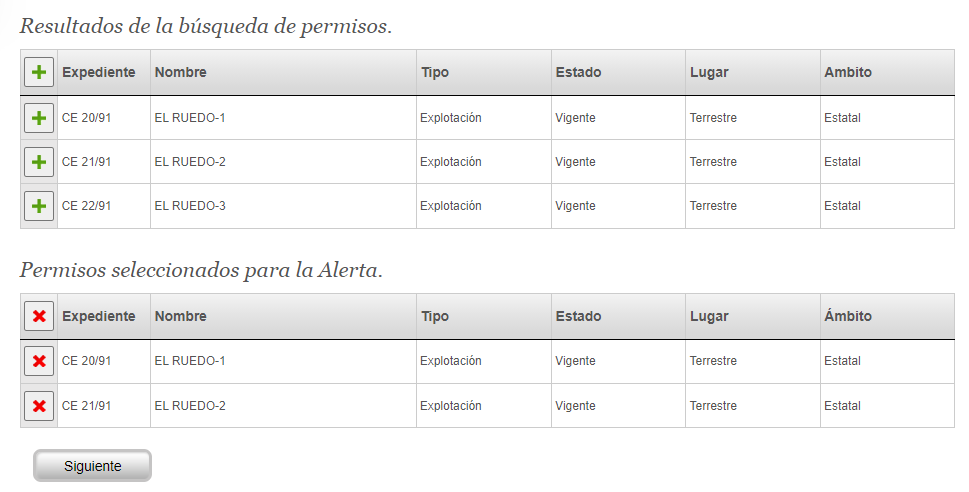
By clicking on the Search button, the licenses that meet the search criteria of the form will be consulted. 2 tables will appear below the form:
-
The table of the license search results.
-
The table of licenses selected for the Alert.
The table of licensed selected for the Alert will be initially empty.
-
To
add licenses to the alert, you must add licenses to the table of licensed selected from the search results table, by clicking on the button with the + symbol located in the first column of the row of the license you want to add.
-
To
remove licenses from the alert, click on the button with the x symbol located in the first column of the row of the license to be removed from the table of selected licenses.
To continue with the subscription, once the table of selected licenses has all the desired licenses, press the Next button.The table of licenses selected for the Alert must have at least one license.
4. Alert subscription form step 4
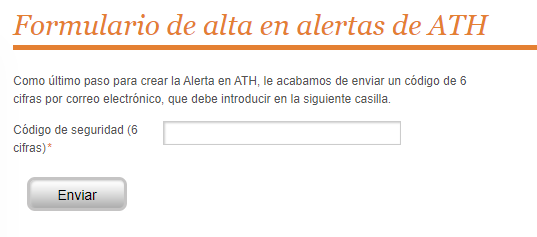
The last step in the subscription process is to enter a security code to activate the alert.
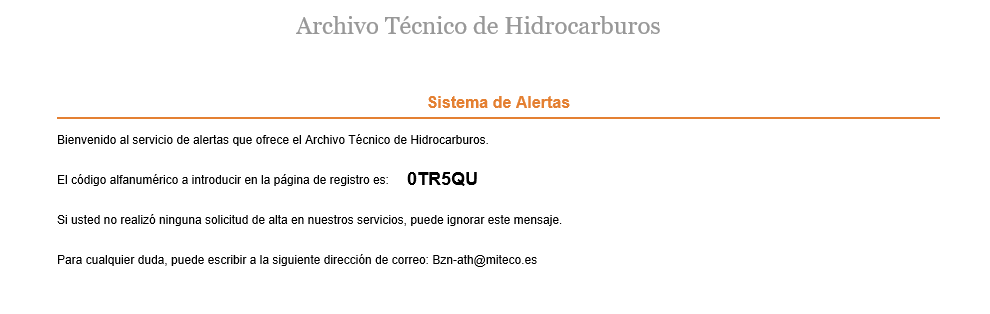
The security code is received via email at the email address entered in the form in step 1.The appearance of the received mail is like the following image:
If the code entered in the form in step 4 matches the code of the email received, the alert will remain active, displaying the following message: