Gobierno de España. Ministerio para la Transición Ecológica y el Reto Demográfico.
6.1.2. Accessing and editing requests
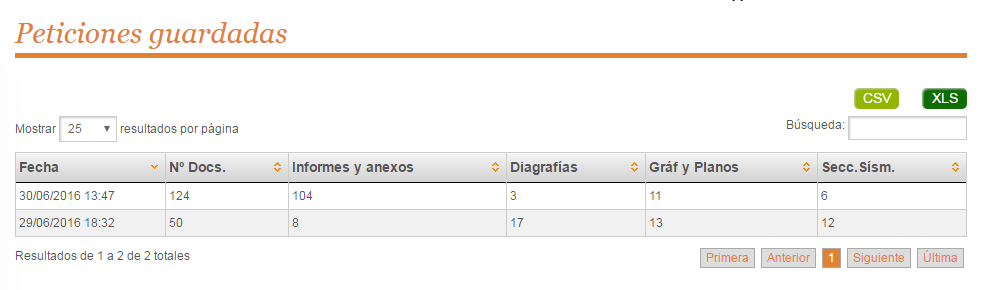
If the logged user clicks on "Saved", under the "My Requests" menu, a list with all his saved requests will appear, with the number of documents of each kind. This list can be exported to xls or csv format.
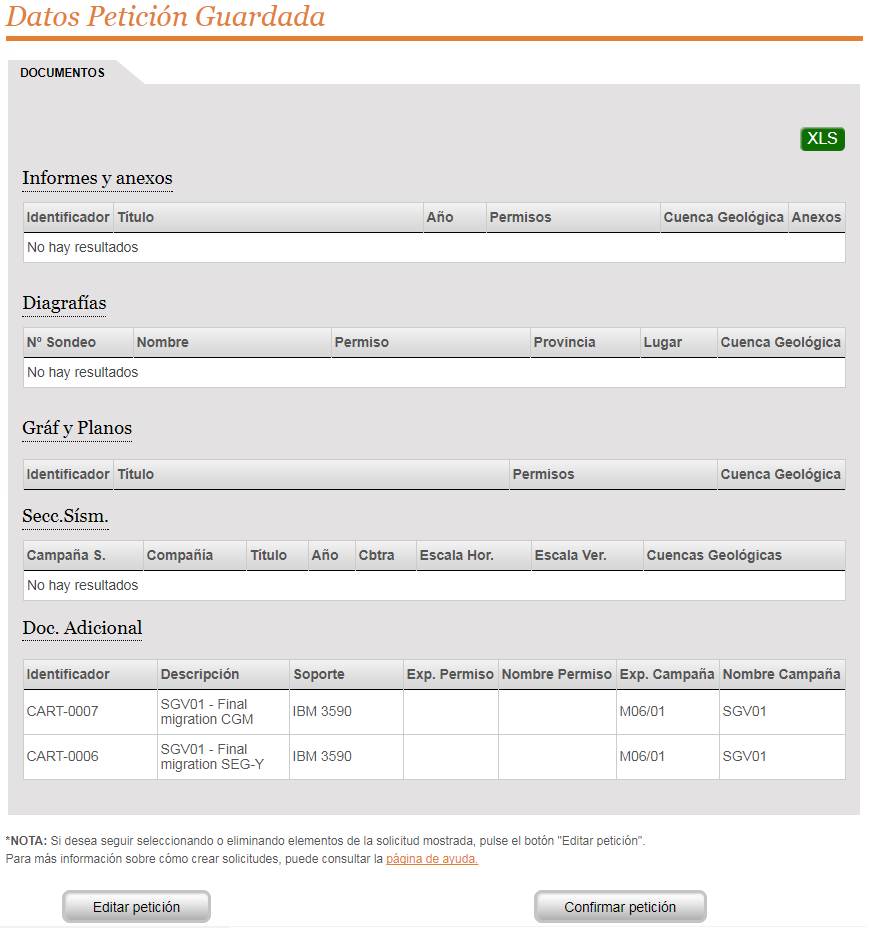
Clicking on the desired request number in the table, the detail of the request will appear:
From the saved request detail, the user can:
Export to an xls file a list of the documentation in the request, clicking on the Excell button on the upper right corner of the screen.
Edit the request, clicking on the "Edit request" button. By doing so, the selected documents in the request will appear in the "Selected document list" on the upper right corner of the screen, and a table with all the selected documents. The user can exit that screen in order to keep selecting documents, and can re-save the request, updating its selected documents, following the steps in the previous section.
Confirm the request, clicking on the "Confirm request" button, at the bottom of the screen. By doing so, the user can send the request following the steps on the previous section. By sending a saved request, it will no longer appear in the "saved requests" list, but it can be found in the "Sent requests" section.